AI Article Writer
The AI Article Writer (also called WP Publisher) generates complete, SEO-optimised articles using Minorank AI, creates images using Gemini Imagen 3, and publishes them directly to any connected WordPress site, all from within the Minorank Platform. No switching between tools, no copy-pasting.
A standout feature is automatic internal linking: before generating, the platform scans your existing WordPress content and Minorank AI embeds 3–5 contextually relevant internal links directly inside paragraphs, following Google's guidance that in-paragraph links carry more SEO weight than sidebar or footer links.
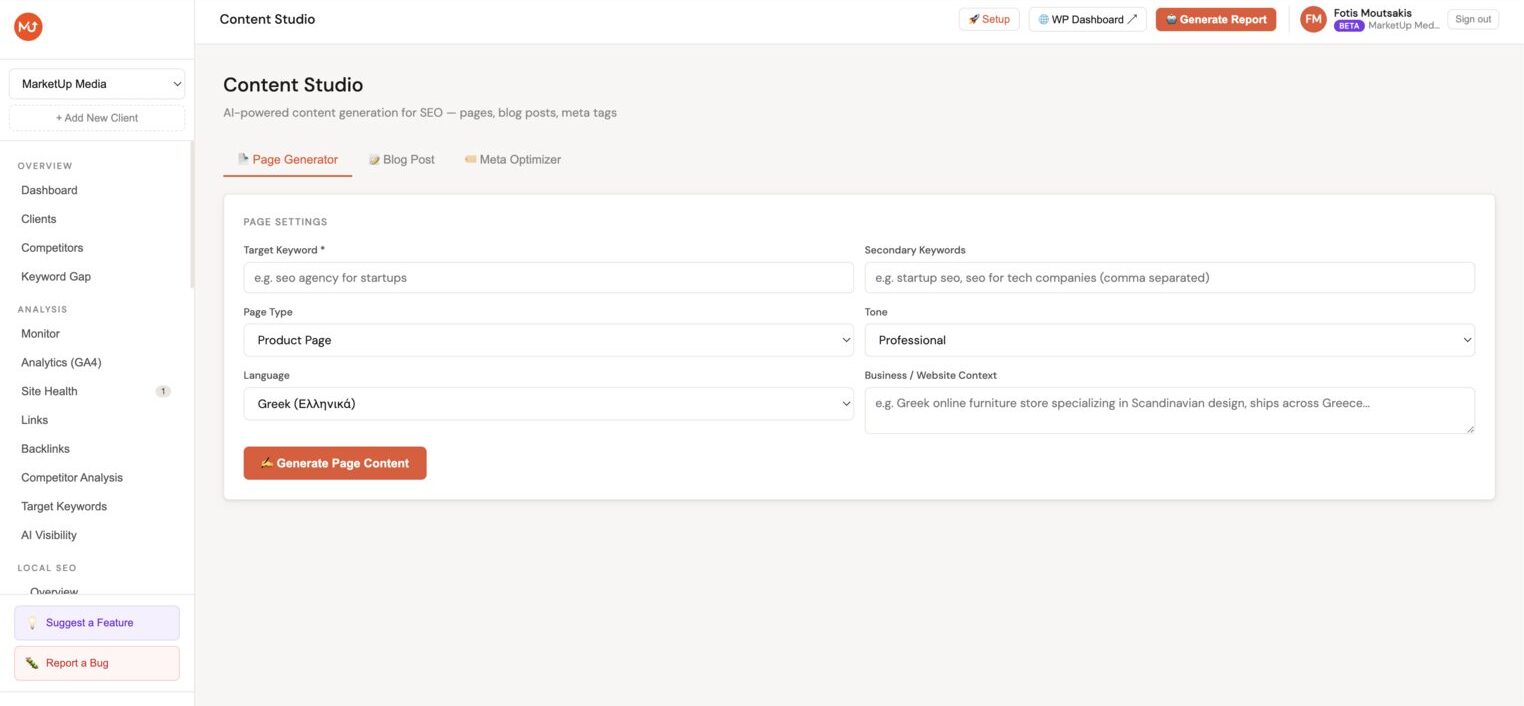
Creating an article
- In the client sidebar, go to Content → AI Writer.
- Click New article.
- Fill in the article settings.
- Click Generate article.
Generation takes 20–60 seconds depending on target word count.
Article settings
Content
| Setting | Description |
|---|---|
| Topic / keyword | The subject and primary keyword. Be specific, "10 best practices for local SEO for dentists in Athens" produces better output than "local SEO tips". |
| Target audience | Describe the reader (e.g. "small business owners with no technical SEO background"). Affects vocabulary, examples, and tone. |
| Word count | ~800 / ~1,200 / ~1,500 / ~2,000 words, or enter a custom target (800–2,000). |
| Language | The language Minorank AI writes in (Greek or English). |
| Business context | Pre-filled from the client profile, Minorank AI uses this to keep examples and recommendations relevant to the client's industry. |
Publish settings
| Setting | Description |
|---|---|
| WordPress site | Which connected site to publish to. |
| Post type | Post, Page, or custom post type. |
| Category | WordPress category to assign. |
| Author | WordPress user to assign the article to. |
| Status | Draft (default, recommended) or Published (goes live immediately). |
Duplicate detection
Before generating, the platform checks whether you've already published an article on the same or a very similar topic for this client. If a match is found, you'll see a warning with two options:
- Rewrite, generate a fresh take on the existing article
- Generate anyway, proceed with a new article on the same topic
This prevents accidental keyword cannibalisation across your client's content.
Internal linking
Before generating the article, the platform automatically scans your connected WordPress site's existing content (using data from the Meta Manager scan) and identifies the top 10 most relevant pages, posts, products, and categories based on keyword similarity.
Minorank AI then embeds 3–5 internal links naturally inside paragraphs, not in footers or sidebars. This follows Google's guidance that contextual, in-paragraph links carry more ranking weight.
E-commerce boost: Product pages and product category pages receive a relevance boost in the ranking algorithm, making them more likely to be linked, ideal for clients with WooCommerce stores.
Graceful fallback: If no Meta Manager scan data exists for the site, the article generates normally without internal links. Run a scan first to unlock this feature.
Reviewing the generated article
The article opens in a full preview before publishing. Review and edit inline:
- Body text, edit any section freely
- Headings, add, remove, or rename H2/H3 sections
- Meta title and description, auto-generated; edit if needed
- Focus keyword, carried from the topic field; adjust if needed
- Featured image, see below
:::tip Always review AI content Minorank AI produces strong first drafts, but review for factual accuracy, brand voice, and client-specific requirements before publishing. AI content should be a starting point, not a finished product. :::
Image generation with Gemini
After the article is generated, you can create images using Gemini Imagen 3 (with automatic cascade fallback if the primary model is unavailable):
- Click Generate image.
- Use the auto-suggested prompt (generated from the article topic and keyword) or write your own.
- Choose a style: Photo-realistic, Illustration, Flat design, or Abstract.
- Click Generate.
- Click Use as featured image if satisfied, or Regenerate to try again.
You can generate both a hero (featured) image and additional inline images for use inside the article body. Generated images are uploaded directly to the WordPress media library.
Publishing to WordPress
Once the article is ready:
- Click Publish to WordPress.
- Confirm the site, post type, status, and author.
- Click Confirm and publish.
The article is created via the WordPress REST API. A confirmation message shows the WordPress post ID and a direct link to the post.
Published content history
All articles generated via the AI Writer are saved in the Published content history table, regardless of whether they were published:
| Column | Description |
|---|---|
| Type | Article type (Guide, How-to, Listicle, etc.) |
| Title | Article title as published |
| Keyword | Target keyword |
| Date | Generated or published date |
| Status | Draft / Published |
Use the search field to find articles by title or keyword, and the type filter to view specific content formats.
You can re-open any saved article to edit and re-publish it.
Blog Post Planner integration
Articles planned in the Blog Post Planner have a Write button that opens the AI Writer pre-filled with the planned post's topic, keyword, title, and meta description, skipping the setup step entirely.
Next steps
- Blog Post Planner, plan a content calendar and generate articles systematically
- WordPress SEO Management, manage published articles' meta tags via Meta Manager
- Connectors, set up WordPress site connections