Connectors
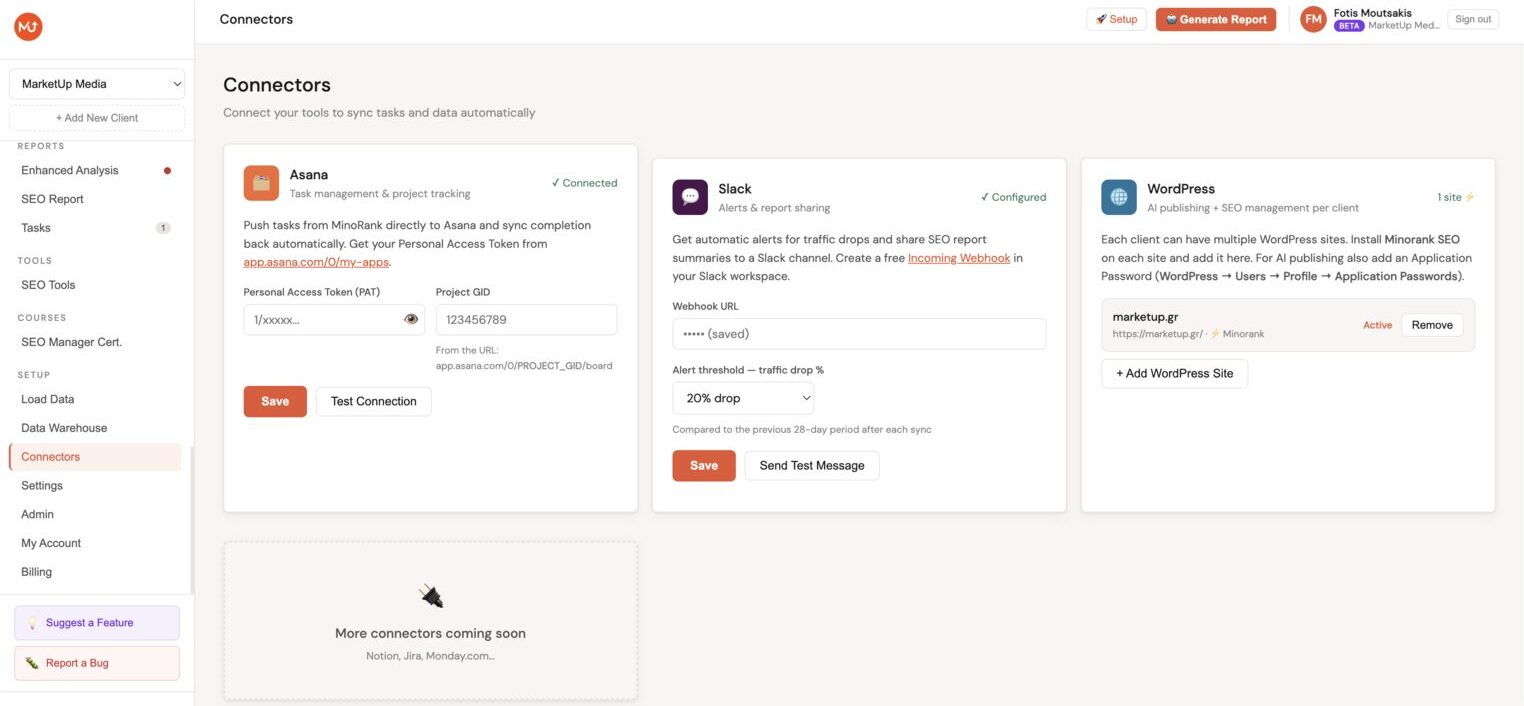
Connectors is the integrations hub for each client in the Minorank Platform. From here you configure Asana (for task syncing), Slack (for traffic drop alerts), and WordPress (for remote SEO management via the plugin).
Asana
The Asana integration lets you push tasks created in Minorank (from AI reports, site health, keyword plans) directly to an Asana project.
Setup
- Go to Connectors → Asana.
- Enter your Asana Personal Access Token (PAT).
- In Asana, go to My Profile → Apps → Developer Console → Create new token.
- Copy the token and paste it here.
- Enter the Project GID of the Asana project to push tasks to.
- The Project GID appears in the Asana project URL:
app.asana.com/0/{PROJECT_GID}/...
- The Project GID appears in the Asana project URL:
- Click Save and test connection.
A green badge confirms the connection. From this point, every task in the Tasks module has an Asana button.
What gets pushed
When you push a task to Asana, Minorank creates an Asana task with:
- Task name
- Full description (including context and expected impact from the AI)
- Due date (if set in Minorank)
- A link back to the Minorank task
Tasks are not synced bidirectionally, completing a task in Asana does not update its status in Minorank automatically.
Slack
The Slack integration sends automatic traffic drop alerts when a significant drop in organic traffic is detected after a daily sync.
Setup
- Go to Connectors → Slack.
- Enter your Slack Webhook URL.
- In Slack, go to Apps → Incoming Webhooks → Add new webhook and select the channel to post to.
- Copy the webhook URL and paste it here.
- Set the traffic drop threshold, the percentage drop that triggers an alert (e.g. 20% means "alert me if this week's traffic is 20% lower than the previous 28-day baseline").
- Click Save.
Alert format
When a traffic drop exceeds the threshold after a daily sync, Minorank posts a Slack message to the configured channel with:
- Client name
- Date of the alert
- Current traffic vs baseline
- Percentage drop
- A link to the client dashboard
Alerts fire once per detection, they do not repeat daily if the traffic remains low.
WordPress
The WordPress connector links the client's WordPress site(s) to the platform via the Minorank SEO plugin REST API.
Setup
For each WordPress site:
- Go to Connectors → WordPress → Add site.
- Enter:
- Site URL, the WordPress site URL (e.g.
https://example.com) - Username, a WordPress admin username
- Application Password, generate one from WordPress Admin → Users → Profile → Application Passwords
- Minorank API Key, copy from the plugin's Settings page, or generate a new one
- Label, an optional name to identify this site in the platform (e.g. "Main site", "Blog")
- Site URL, the WordPress site URL (e.g.
- Click Save and test connection.
Multiple sites
Each client can have multiple WordPress sites. Only one site is active at a time, the active site is the one used by the Meta Manager, Redirections view, 404 Monitor, and AI Writer. Switch the active site using the site selector at the top of the WordPress SEO section.
Connection status
Each connected site shows its connection status:
- Connected (green), plugin is reachable and the API key is valid
- Unreachable (yellow), the site URL returned no response (server down or wrong URL)
- Invalid key (red), the plugin is reachable but the API key was rejected
:::tip Keep API keys secure Each WordPress site gets a unique API key. If a key is compromised, regenerate it from the plugin's Settings page, the old key is immediately invalidated. :::
Next steps
- Tasks, push AI-generated tasks to Asana
- WordPress SEO Management, manage meta tags and redirections on connected WordPress sites
- AI Article Writer, publish articles to connected WordPress sites