Getting Started with Minorank Platform
This guide walks you through creating an account, setting up your first client, connecting your key data sources, and running your first AI SEO report. The full process takes under 15 minutes.
Prerequisites
- A Google account with access to the client's Google Search Console property
- The client's website URL
- Optionally: access to the client's Google Analytics 4 property
1. Create your account
The platform is currently in private beta. Request access →
Once approved, you'll receive an invitation link. Sign up with your email address and set a password. You're now inside your Workspace, the top-level view from which all clients are managed.
2. Add your first client
- On the workspace dashboard, click Add client.
- Fill in the client details:
- Name, the client's business name (used in reports and the UI)
- Website URL, the primary domain (e.g.
https://example.com) - Logo, optional; shown in the client switcher for quick visual identification
- Timezone, affects how daily data windows are calculated
- Click Create client.
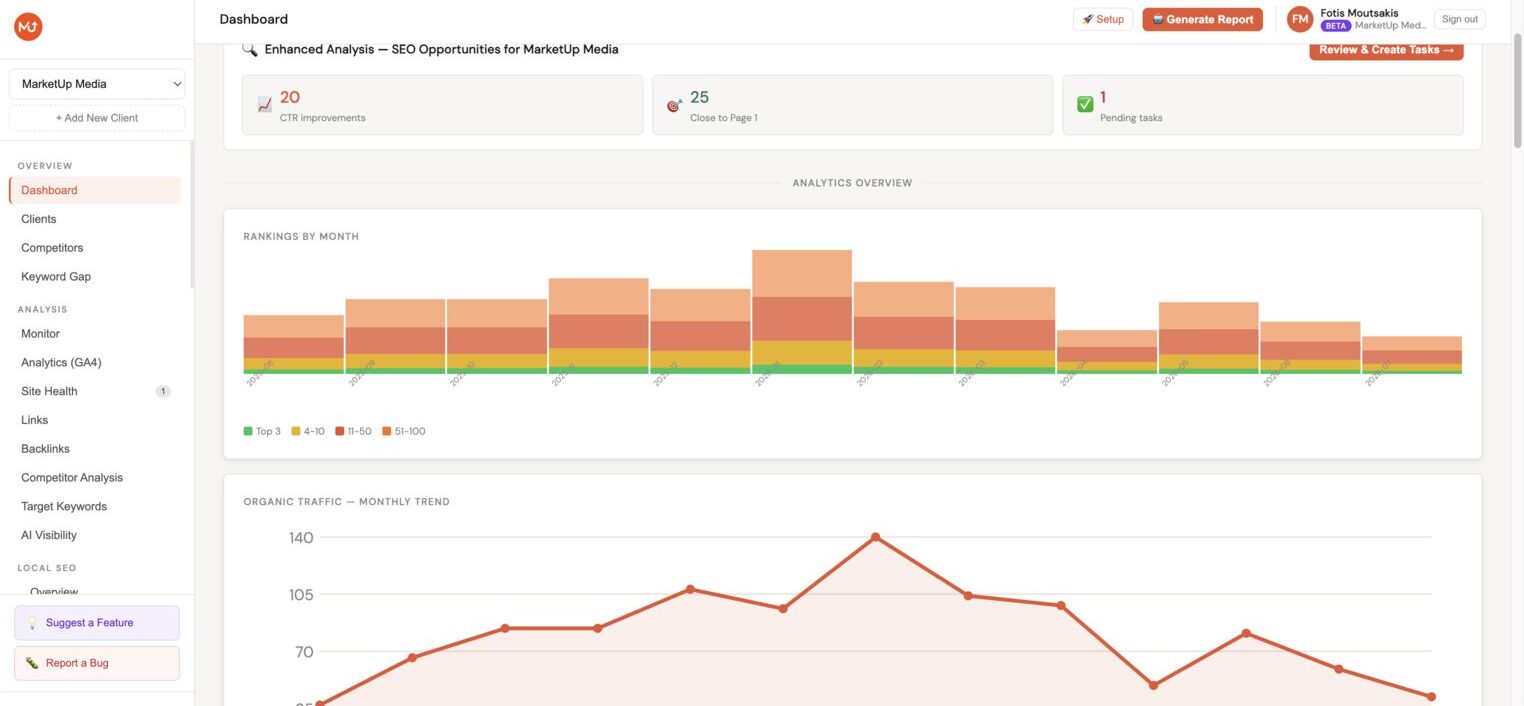
You're now inside the client dashboard. The left sidebar lists every feature available for this client.
:::tip Multiple WordPress sites per client Each client can have multiple WordPress sites, useful for clients with a main site plus a blog, regional domains, or a staging environment. Add additional sites later under Settings → Sites inside the client dashboard. :::
3. Connect Google Search Console
GSC is the foundation of every Minorank report. It provides keyword rankings, clicks, impressions, and CTR data.
- In the client sidebar, go to Integrations → Search Console.
- Click Connect Google Search Console.
- Complete the OAuth flow, sign in with the Google account that has access to the client's GSC property.
- Select the correct GSC property from the dropdown. Make sure it matches the primary domain.
- Click Save.
Minorank immediately begins syncing the last 16 months of available data. Initial sync takes a few minutes.
:::note GSC data delay Google delays Search Console data by 2–3 days. The freshest data you'll see on any given day is typically from 2–3 days prior. Minorank syncs daily at 06:00 UTC. :::
4. Connect Google Analytics 4 (optional)
GA4 adds session, user, and conversion data on top of your GSC rankings, enabling traffic trend analysis and page-level performance reporting.
- Go to Integrations → Analytics.
- Click Connect Google Analytics 4.
- Complete the OAuth flow and select the correct GA4 property.
- Click Save.
5. Add competitors
Adding competitors unlocks the competitor analysis, keyword gap, and organic traffic comparison features.
- Go to Competitors.
- Click Add competitor.
- Enter the competitor's domain (e.g.
competitor.com). - Click Add.
Minorank fetches the competitor's keyword data and builds a 12-month organic traffic chart automatically. Add up to 5 competitors per client.
6. Generate your first AI report
- Go to Reports → AI Reports.
- Click Generate new report.
- Select the date range, language (Greek or English), and any optional sections to include or exclude.
- Click Generate report.
The report is generated by Minorank AI using your live GSC data, GA4 data (if connected), and competitor data. It covers KPIs, traffic trends, top queries, top pages, brand vs non-brand split, CTR opportunities, keyword insights, competitor performance, and a prioritised action plan. Generation takes 15–45 seconds.
7. Install the plugin on the client's WordPress site
To unlock WordPress SEO management, the AI Writer, and Meta Manager, install the Minorank SEO plugin on the client's site:
- Install the plugin from WordPress.org or upload the zip via Plugins → Add New → Upload Plugin.
- In the Minorank Platform, go to Settings → Sites → Add site and copy the generated API key.
- In WordPress admin, go to Minorank SEO → Settings, paste the API key, and click Save and test connection.
Once connected, you can manage meta tags, redirections, 404 errors, and publish articles, all from the platform.
Next steps
- Managing clients, add more clients and manage the workspace
- AI SEO Reports, understand all 16+ report sections
- Competitor Analysis, read the 12-month traffic chart and keyword gap
- WordPress SEO Management, Meta Manager, Redirections, 404 Monitor