Track Your Real Google Rankings, Not Just Averages
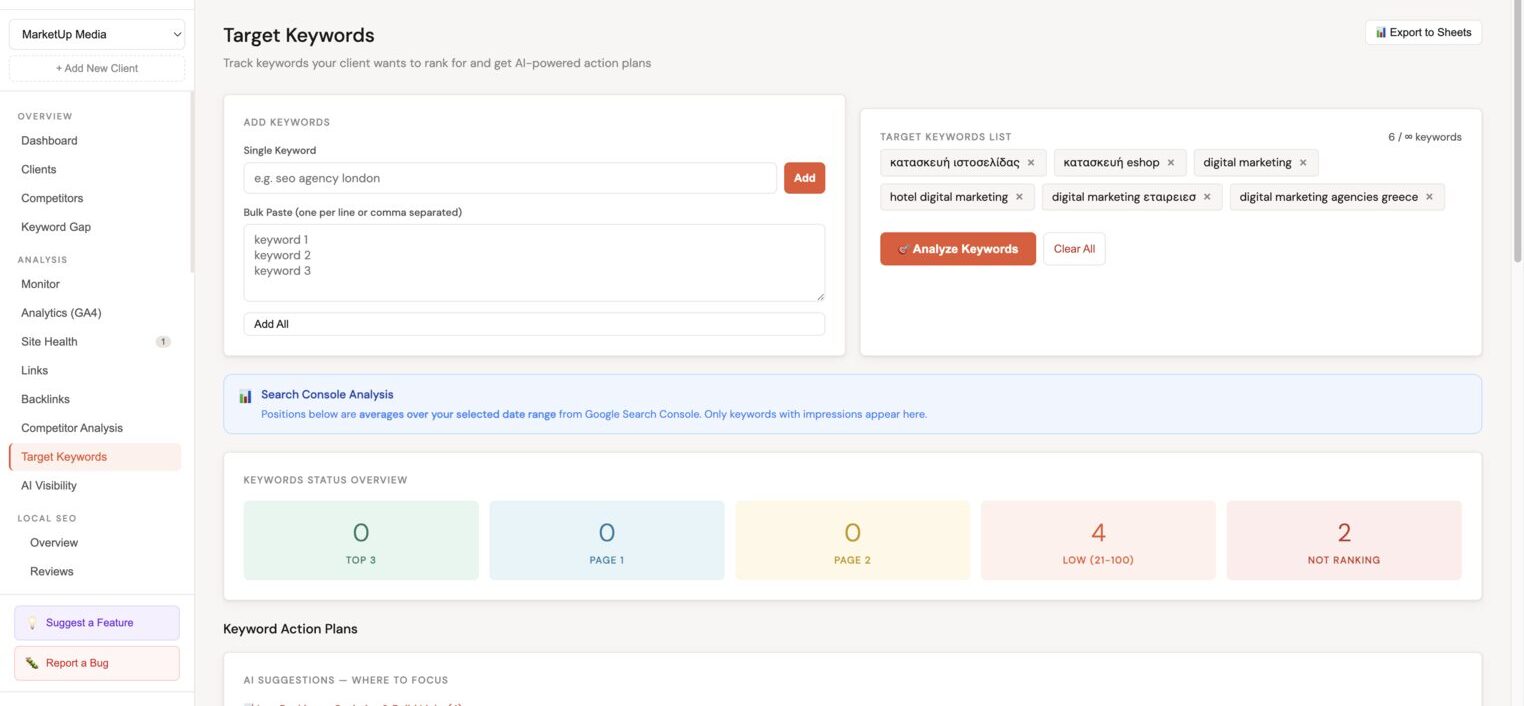
Minorank checks every target keyword live on Google monthly and builds an AI action plan based on where you actually rank today.
Why live SERP checks matter
Google Search Console shows a 28-day average position, useful for trends, but not for knowing where you rank right now. Keywords with zero clicks don't appear in GSC at all, even if you rank on page 2.
Minorank bypasses this by checking each keyword directly on Google every month, so you always have a current, accurate rank, regardless of click or impression volume.
| Google Search Console | Minorank Target Keywords | |
|---|---|---|
| Position data | 28-day average | Today's exact rank |
| Zero-impression keywords | Not shown | Tracked |
| Action plan | None | AI-grouped by priority |
| Auto-refresh | No | Monthly |
Adding target keywords
- In the client sidebar, go to Keywords → Target keywords.
- Click Add keywords.
- Enter keywords one per line, or paste a bulk list.
- Click Add keywords.
Keywords are added to the tracking queue. Position data updates monthly on the next scheduled check.
:::tip Bulk paste Paste a comma-separated or line-separated list to add dozens of keywords at once. You can also import from your Search Console data by filtering for keywords in positions 11–20 (page 2 quick wins) or with high impressions and low CTR. :::
How it works
Once a month, Minorank runs a live SERP check for every tracked keyword. No manual action needed. The check:
- Finds the client's exact position on Google for each keyword
- Tracks zero-impression keywords that Search Console doesn't report
- Combines live rank data with Search Console history for AI analysis
- Updates the position history chart for every keyword
AI Keyword Action Plan
After each monthly check, Minorank AI analyses every keyword using both the live position and Search Console history, then groups them into three clear action categories:
⚡ Quick Wins
Positions 11–20, Keywords ranking on page 2. Small improvements to the existing page (better title tag, stronger internal links, improved content) can push them to page 1.
📈 Low Ranking
Positions 21–100, Keywords that exist but are buried. The focus is on-page optimisation and targeted link building for the specific URL.
🎯 Not Ranking
No Google presence, Keywords with no position in the top 100. The recommended action is to create new content specifically targeting these terms.
Position history
Every tracked keyword has a trend chart showing rank movement over time. Use this to:
- Confirm that optimisation efforts are moving the needle
- Spot drops before they compound
- Show clients progress across their priority terms
Per-keyword action plan
Click any keyword to open its full analysis. For each keyword, Minorank shows:
- Current position and competitors' positions for the same keyword
- Position history chart
- Status, which action category (Quick Win, Low Ranking, Not Ranking) and why
- AI-generated action plan, specific steps covering content review, title/meta optimisation, internal linking, schema, link building, and monitoring milestones
Each action step has a Task button (adds to your Minorank task list) and an Asana button (pushes directly to your connected Asana project).
Keyword gap analysis
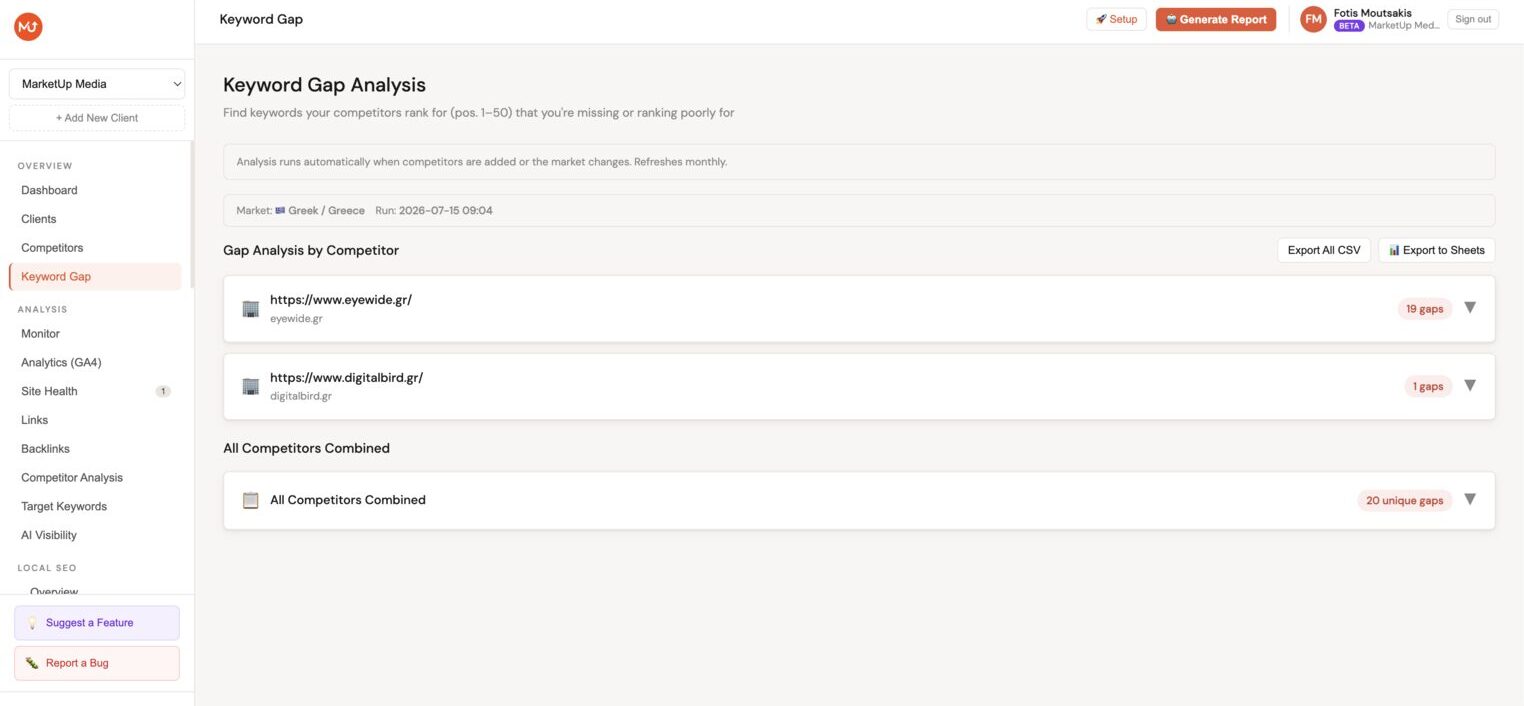
The Keyword gap tab finds keywords your competitors rank for that the client doesn't, or ranks much lower for. These represent direct content and optimisation opportunities.
See the Competitor Analysis page for full documentation on reading keyword gap results.
Keyword groups
Organise tracked keywords into groups for cleaner reporting and filtering:
- Go to Keywords → Groups → Create group.
- Name the group (e.g. "Services", "Blog", "Brand", "Local").
- Assign keywords from the main Keywords table.
Groups appear as filter tabs and can be used to segment AI report generation, for example, generate a report focused only on the "Local" keyword group.
Next steps
- Competitor Analysis, find more keywords via keyword gap analysis
- AI SEO Reports, target keyword progress appears in every AI report
- Tasks, manage and track keyword action plan tasks