Local SEO
The Local SEO section connects your Google Business Profile (GBP) to Minorank and gives you a complete workflow for managing your clients' local presence, from monitoring reviews and insights, to planning posts with AI, to auditing and fixing profiles without ever leaving the platform.
Connecting a Google Business Profile
Before using any Local SEO feature you need to link a GBP location to the active client.
- Navigate to Local SEO → Overview.
- Select your Google account from the account dropdown.
- Choose the business location from the location dropdown.
- Click Connect. The location is saved to the client and stays connected across sessions.
Once connected, the location name appears in the top bar on every Local SEO sub-page, with a Change location button if you need to switch.
Overview
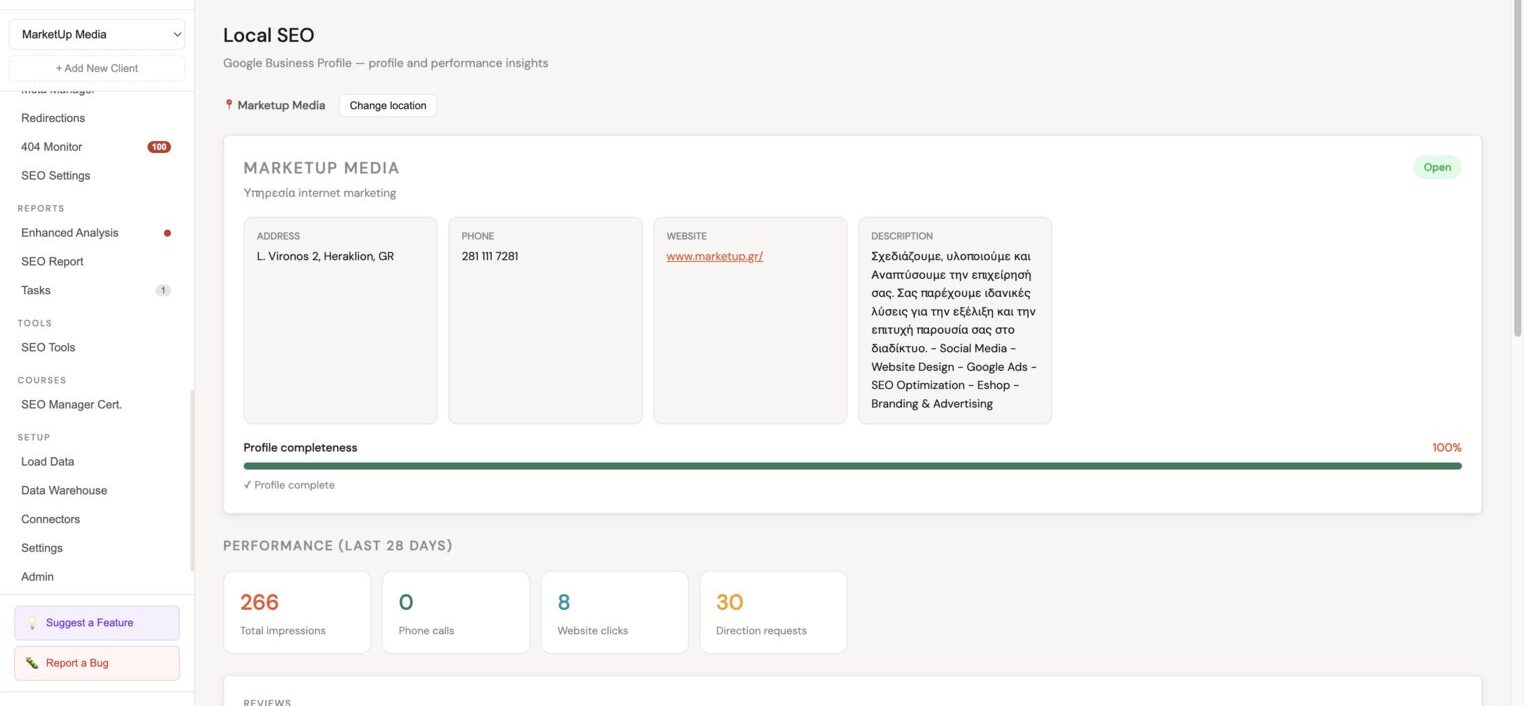
The Overview page shows a live snapshot of the connected Google Business Profile:
- Profile card, business name, category, address, phone, website, and current open/closed status.
- Performance (last 28 days), total impressions, phone calls, website clicks, and direction requests pulled from the GBP API.
- Reviews summary, average star rating, total review count, and star-by-star breakdown.
- Rating Goal Calculator, enter a target rating and see instantly how many new 5-star reviews are needed.
- Review link & QR code, your direct Google review link with one-click copy, plus ready-made WhatsApp/SMS, email, and short SMS message templates.
Reviews
The Reviews page lists all Google reviews for the connected location and lets you respond to them directly from Minorank using AI.
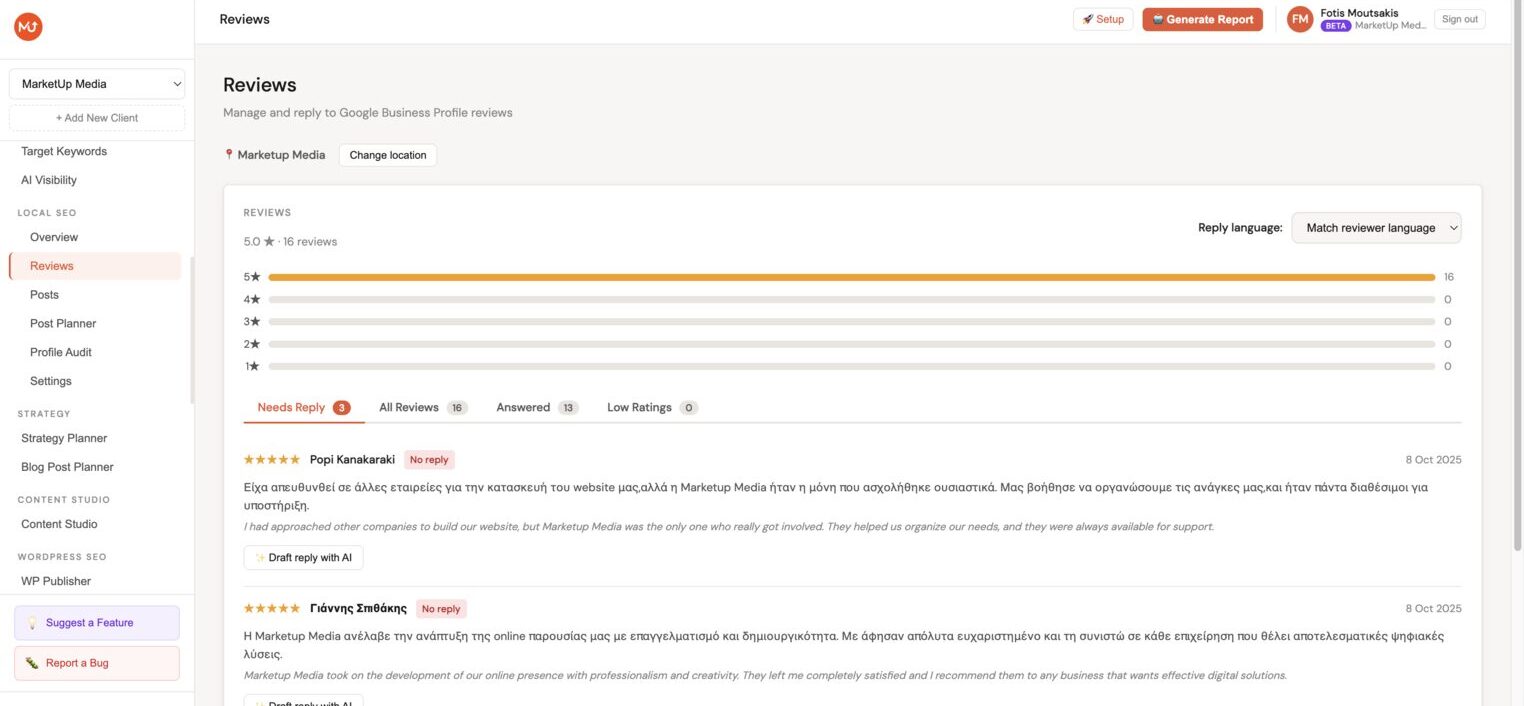
- Filter tabs: Needs Reply, All Reviews, Answered, Low Ratings.
- Each review shows the reviewer name, star rating, date, review text, and an auto-translated version for non-English reviews.
- Click Draft reply with AI to generate a response. The AI uses the language, tone, length, and custom instructions configured in Local SEO → Settings.
- Edit the generated reply before publishing, then click Publish Reply to post it to Google.
- Already-replied reviews show the existing reply inline.
Reply Settings
Go to Local SEO → Settings to configure how AI replies are generated:
| Setting | Options |
|---|---|
| Language | Greek, English, and other major languages |
| Tone | Friendly, professional, formal |
| Length | Short, medium, detailed |
| Signature | Custom sign-off appended to every reply |
| Keywords | Brand keywords to weave into replies |
| Custom instructions | Any additional guidance for the AI |
| Auto-publish threshold | Minimum star rating for automatic reply publishing |
Posts
The Posts page lists all posts currently live on your Google Business Profile, pulled directly from the GBP API.
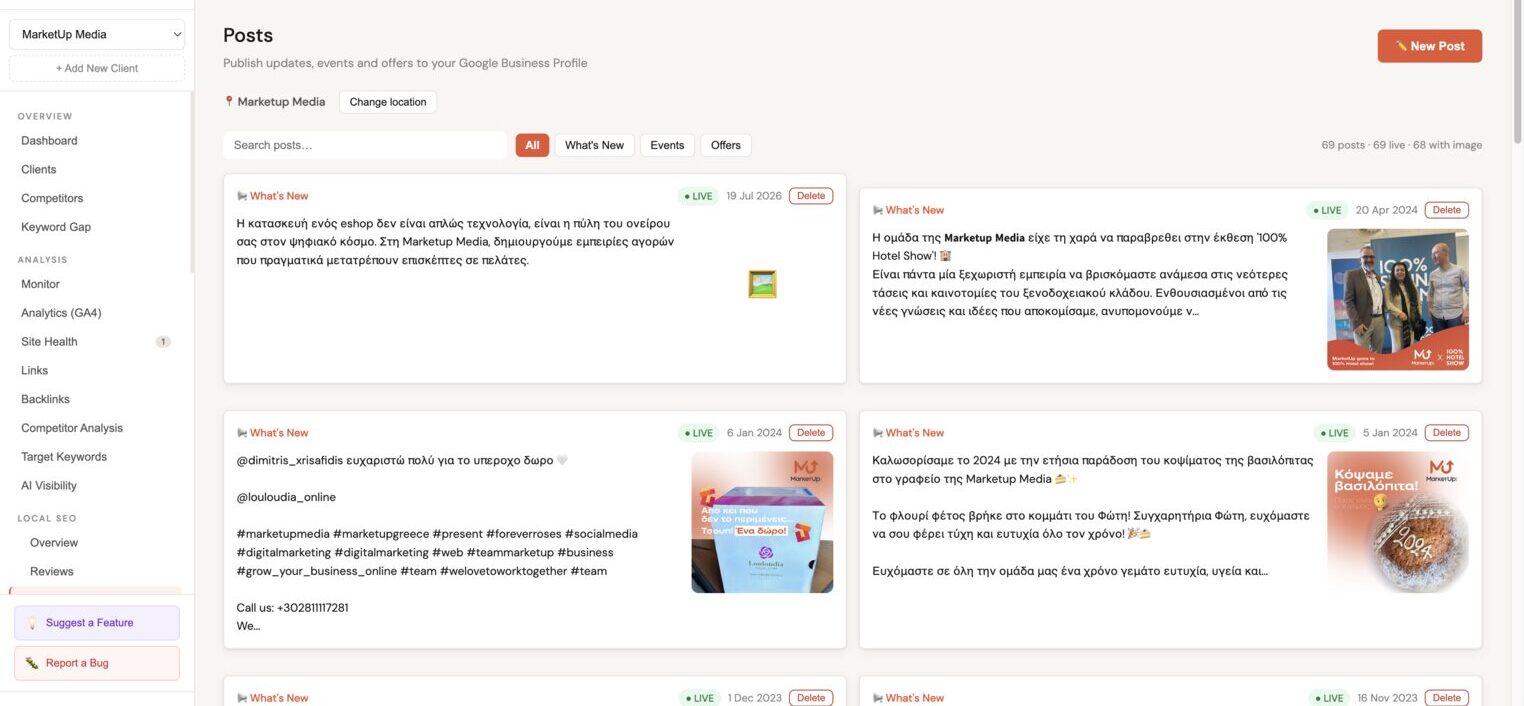
- Posts are paginated.
- Filter by type: All, What's New, Events, Offers.
- Each post shows the type, publish date, summary text, and attached image.
- Use this page to review what is already published before planning new content.
Post Planner
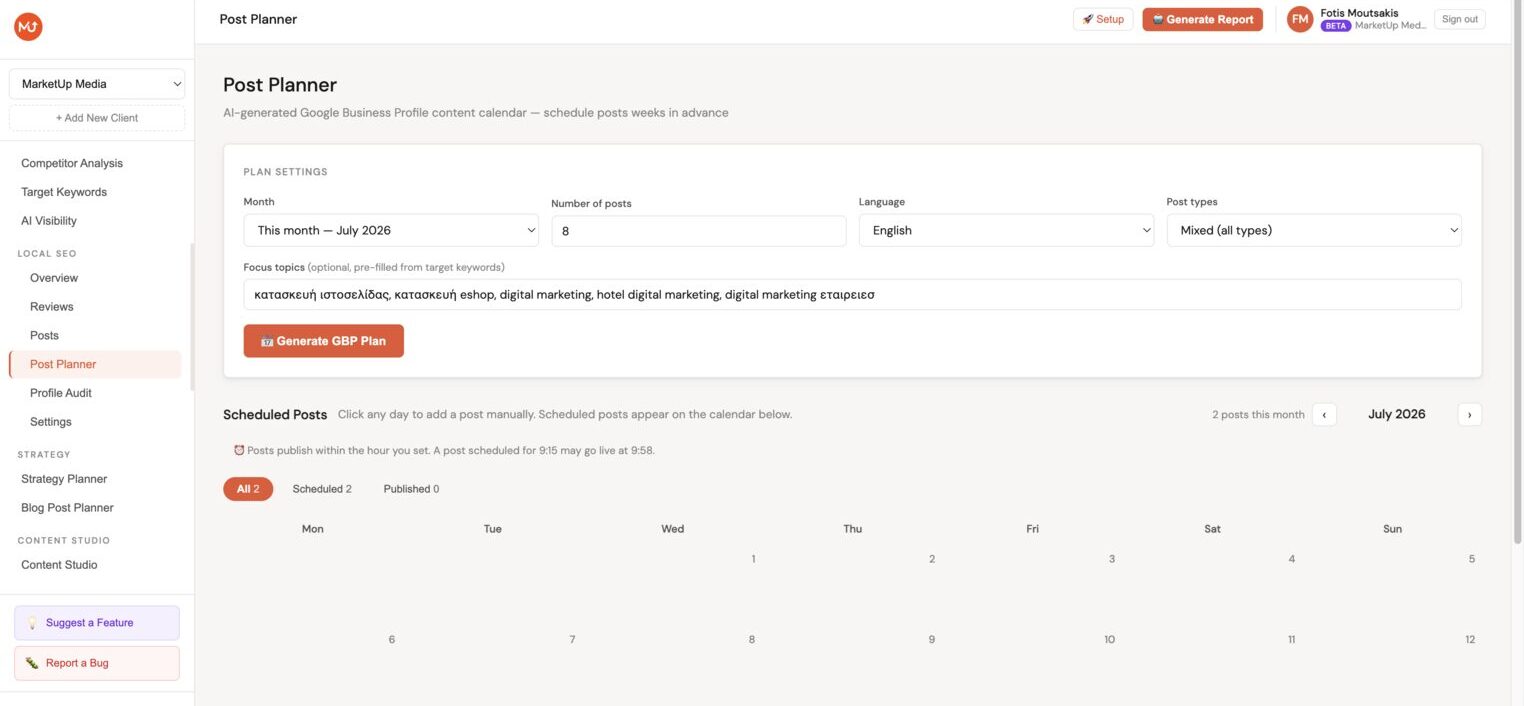
The Post Planner lets you generate an AI content plan, schedule posts month by month, and manage everything from a calendar view, without opening Google Business Profile.
Generating a Plan
- Go to Local SEO → Post Planner.
- Set the options: number of posts, target month, language, post type (mixed, Standard, Event, Offer), focus topics (optional), and tone.
- Click Generate Plan. The AI produces a content plan with suggested dates, post types, and summaries tailored to the business.
- The plan appears as a table showing: date, image thumbnail, post type, summary, and action buttons.
Generating Images
Each plan row has a Generate Image button. Clicking it:
- Sends the post summary to Claude, which writes a specific English image prompt based on the post content, handling Greek and other non-English posts automatically.
- Passes the prompt to Stability AI for generation.
- If Stability AI fails (credits exhausted, content moderation), the request automatically falls back to Gemini Imagen with no action needed from you.
- The generated image appears in the table thumbnail and inside the composer when you open the post to edit.
Click Generate All Images to process every post in the plan in sequence.
Scheduling Posts
Once you are happy with the plan:
- Click Schedule All to save every post to the database with the suggested dates and hours.
- Or click Edit on individual rows to adjust details before scheduling.
Calendar View
After scheduling, the calendar shows all posts for the selected month. Each day cell displays a chip for every post scheduled on that day.
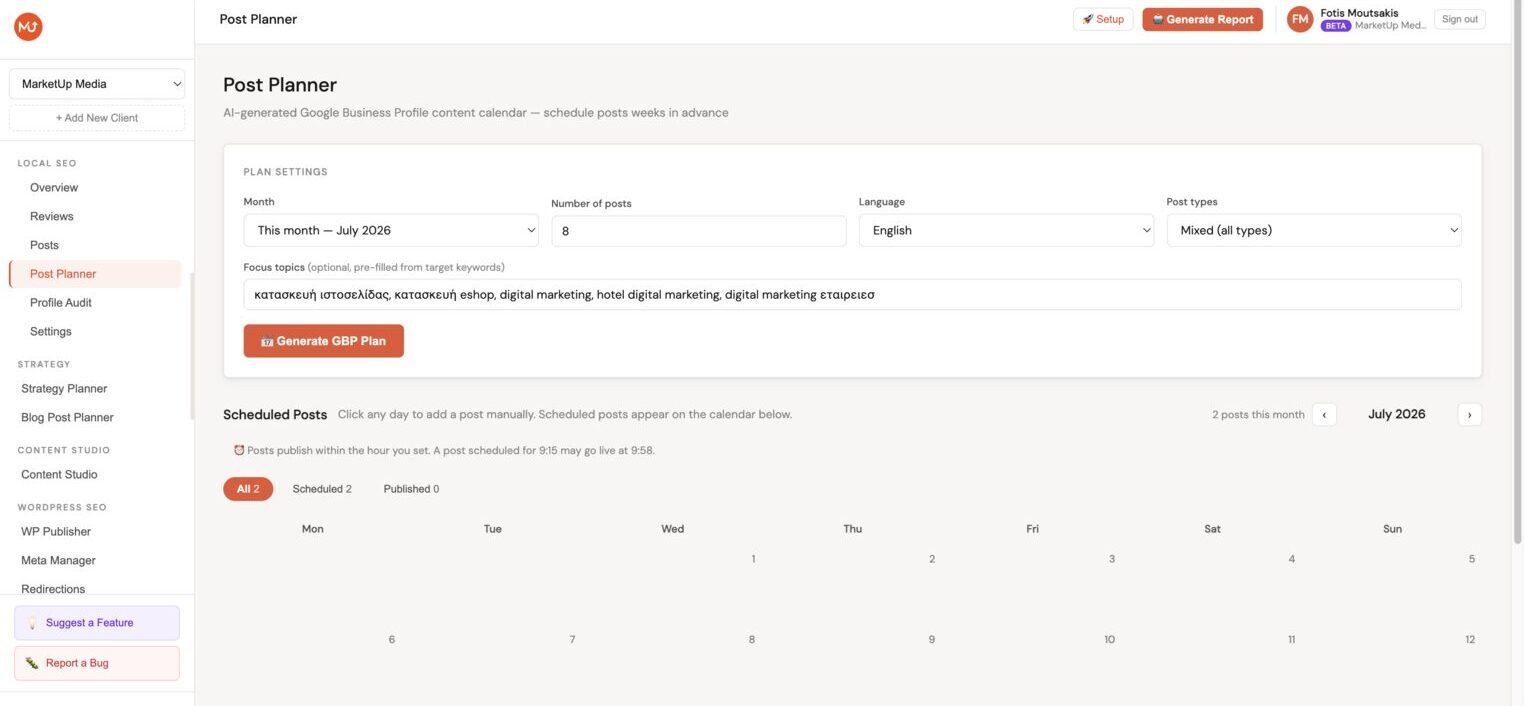
- A quick ✕ on each chip deletes the post directly from the calendar without opening the composer.
- Navigation arrows move between months.
- The calendar reloads automatically after every save, delete, or publish action.
Composer
Clicking a post chip (or any empty date cell) opens the composer modal. From here you can:
- Edit the post text, type (Standard, Event, Offer), CTA type and URL, event title and dates, coupon code.
- Change the scheduled date and hour.
- Generate or replace the post image. Click the image to preview it at full 1024 px.
- Save & Schedule, saves and closes the modal, refreshing the calendar immediately.
- Publish Now, sends the post to GBP instantly without waiting for the scheduled date.
- Delete, permanently removes the post (shown only when editing an existing scheduled post).
Post Types
| Type | Use case |
|---|---|
| Standard | Regular updates, news, tips |
| Event | Time-bounded events with start and end dates |
| Offer | Promotions with optional coupon code |
Profile Audit
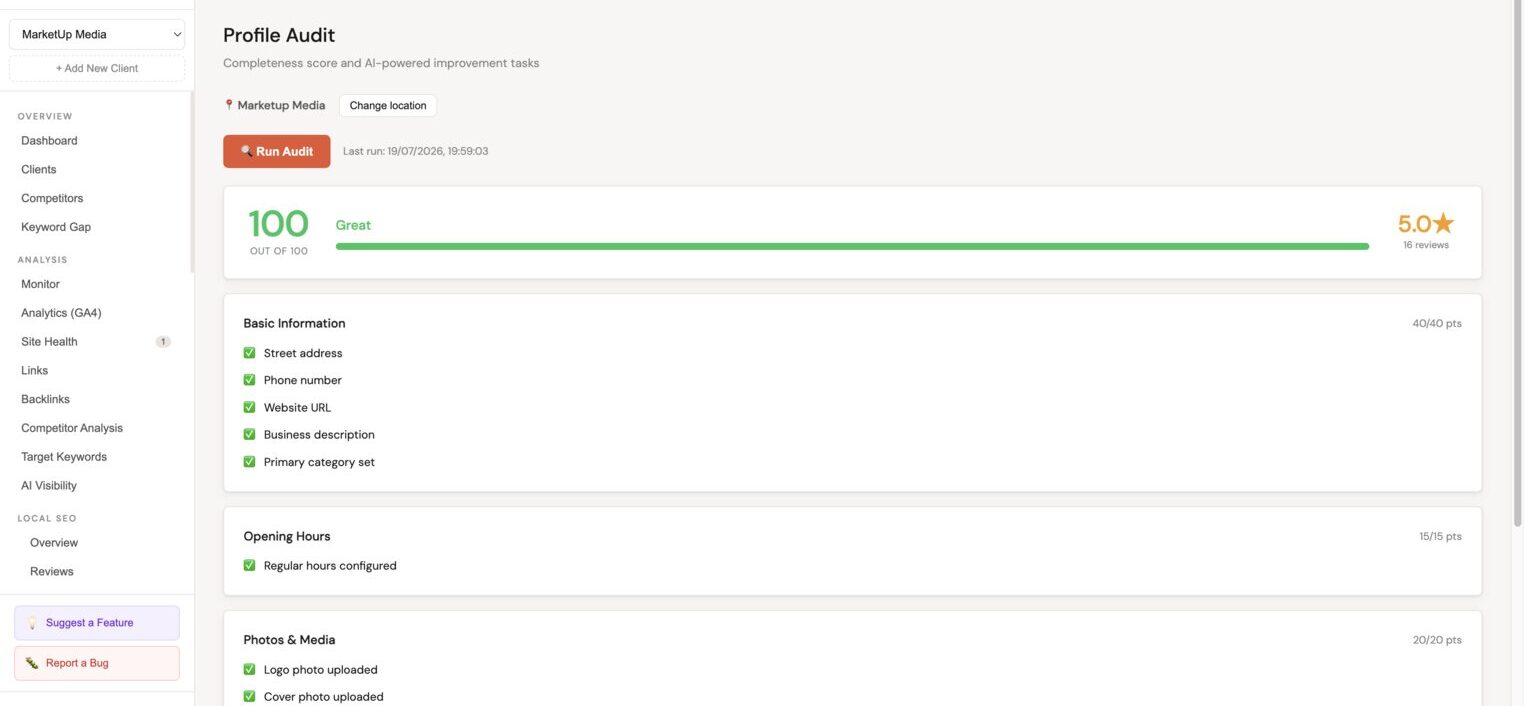
The Profile Audit scans the connected Google Business Profile and scores how complete and optimised it is. It flags every gap with a specific fix tip, and lets you fix most issues directly from Minorank.
Running an Audit
Go to Local SEO → Profile Audit and click Run Audit. The scanner checks the profile across five sections and returns a score from 0 to 100.
The audit also runs automatically once a month in the background. If the page is open when the auto-scan finishes, the results refresh automatically.
Scoring Breakdown
| Section | Max points | What is checked |
|---|---|---|
| Basic Information | 40 | Address, phone, website, business description, primary category |
| Opening Hours | 15 | Whether regular hours are configured |
| Photos & Media | 20 | Logo photo, cover photo, 5 or more total photos |
| Posts Activity | 15 | How recently a post was published (within 7 / 14 / 30 days) |
| Reviews & Engagement | 10 | Percentage of reviews that have a reply |
Each check shows one of three states:
- Green checkmark, passed, no action needed.
- Yellow warning, partially met, score is reduced.
- Red cross, failed, zero points for this check.
Fixing Issues Directly from Minorank
Every failed check shows a → Fix button. Clicking it opens a modal where you can make the change and push it to Google in one step, no need to open Google Business Profile.
Fixable from Minorank:
| Check | What you can do |
|---|---|
| Phone number | Edit and save the primary phone number |
| Website URL | Edit and save the website link |
| Business description | Write or update the description (up to 750 characters) |
| Opening hours | Set open and close times for each day, or mark days as closed |
| Logo photo | Upload JPG, PNG, or WebP, recommended 250×250 px or larger |
| Cover photo | Upload JPG, PNG, or WebP, recommended 1080×608 px (16:9) |
| Additional photos | Upload interior, exterior, product, or team photos |
After saving, the checklist re-scores immediately without re-running the full audit.
Cannot be fixed from Minorank (requires Google):
- Business name, Google restricts changes and may require verification.
- Address, changes can trigger Google's re-verification flow.
- Categories, require searching Google's specific category ID list.
For posts activity and reviews engagement, the fix buttons navigate directly to the Post Planner or Reviews page.
Dashboard Integration
When a client has a connected GBP location but no posts scheduled for the upcoming month, a reminder banner appears on the main dashboard from the 27th of the current month onwards.
- The banner names the specific month that has no scheduled posts.
- Go to Post Planner opens the planner directly.
- ✕ dismisses the banner for that month. It reappears on the 27th of the following month if the next month is still unscheduled.
Technical Notes
- All GBP API calls use the Google OAuth token stored in the user's session. The token is refreshed automatically when it expires.
- Post images are stored on the server and served as public URLs, which the GBP API requires to fetch and attach images.
- The hourly cron finds scheduled posts whose date and hour have arrived and publishes them to GBP automatically.
- The Post Planner cache is keyed per client and month. It clears automatically after every mutation (save, delete, publish) so the calendar always reflects the latest state.
- Profile audit results are cached in localStorage and re-used on navigation. The auto-scan runs after app load, skipping the call if the last audit was less than 30 days ago.