WordPress SEO Management
When the Minorank SEO plugin is installed on a client's WordPress site and connected to the platform via API key, you can manage all WordPress SEO from the platform, without logging into WordPress admin.
This covers meta titles and descriptions (via Meta Manager), redirections, 404 monitoring, and global SEO settings, all managed from a single platform view across every connected client site.
Connecting a WordPress site
Step 1: Install the plugin
Install the Minorank SEO plugin on the client's WordPress site. See the plugin installation guide.
Step 2: Generate an API key
- In WordPress admin, go to Minorank SEO → Settings.
- The Settings page shows your API key (auto-generated on activation). Copy it.
Step 3: Connect in the platform
- In the Minorank Platform, go to Connectors → WordPress → Add site.
- Enter the WordPress site URL, username, application password, the API key copied above, and an optional label.
- Click Save and test connection.
A green badge confirms the connection. The site now appears in the WordPress SEO section of the client sidebar.
:::tip Application Password WordPress Application Passwords are generated from WordPress Admin → Users → Your Profile → Application Passwords. They are separate from your login password and can be revoked at any time without affecting your account. :::
Meta Manager
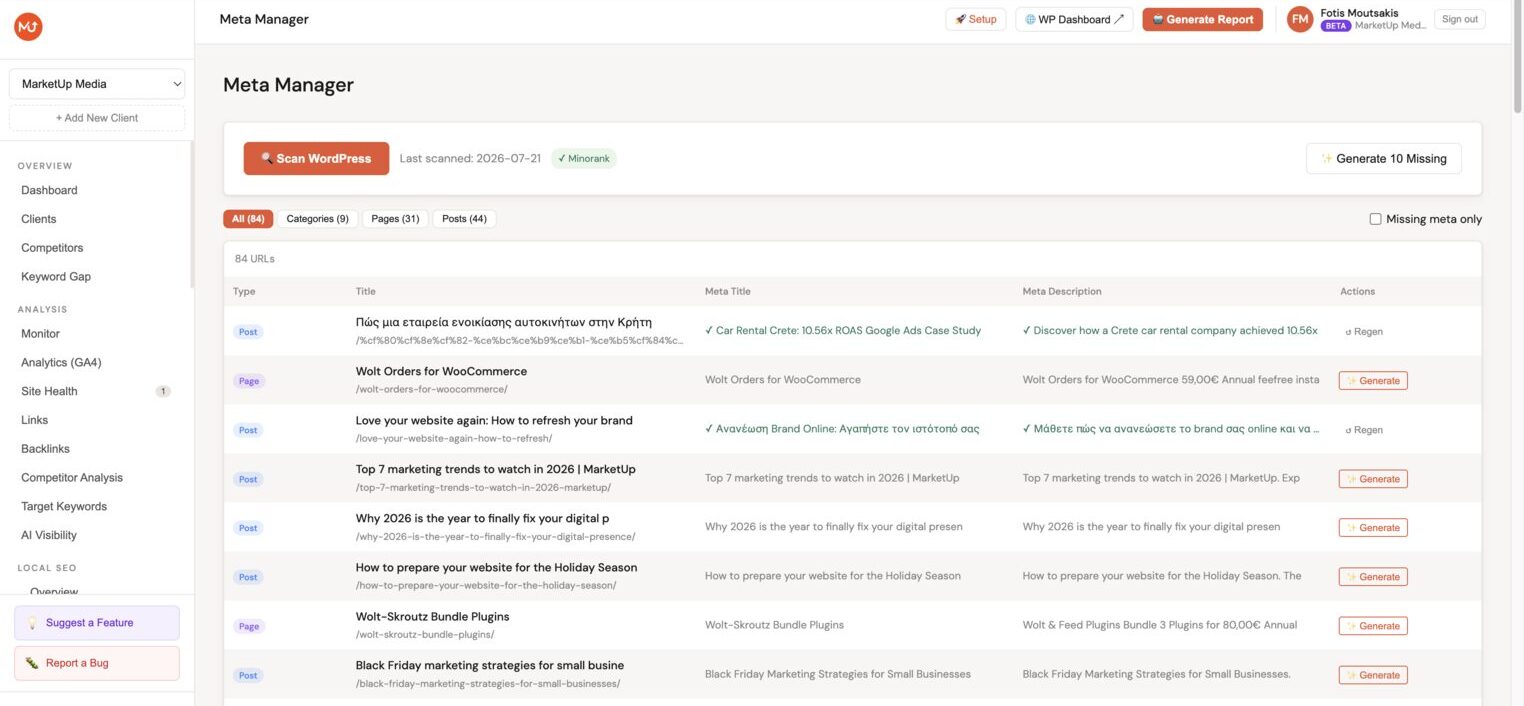
The Meta Manager is the most-used feature of WordPress SEO management. It shows every post, page, product, and category on the connected WordPress site in a single spreadsheet-style table, with inline editing for meta titles and descriptions.
Running a scan
Click Scan to pull the current content inventory from the connected WordPress site. The scan covers up to 500 posts, pages, and products per site, for most clients this covers the full site. Sites with larger catalogues can have this limit raised on request.
The scanner automatically detects which SEO plugin is active on the site, Minorank SEO, RankMath, or Yoast SEO, and reads the existing meta titles and descriptions from whichever plugin is in use. No manual configuration needed.
:::tip Scan powers internal linking The scan data is also used by the AI Article Writer to automatically embed relevant internal links when generating new articles. Run a scan before generating articles to unlock this feature. :::
Reading the table
| Column | Description |
|---|---|
| URL | The page or post URL |
| Post type | Page, Post, Product, Category, or custom |
| Meta title | Current meta title, editable inline |
| Meta description | Current meta description, editable inline |
| Title length | Character count (green: 30–60, yellow: warning, red: too long/short) |
| Desc length | Character count (green: 120–160, yellow: warning, red: outside range) |
Editing meta tags
Click any Meta title or Meta description cell to edit it inline. Press Enter or click Save, the change is pushed to WordPress immediately via the REST API.
AI-generate meta tags
Select one or more rows and click Generate AI meta to have Minorank AI write optimised meta titles and descriptions for those URLs. The AI reads the page content via the plugin and generates suggestions. Review and approve before pushing.
Filter for missing meta
Use the Missing meta filter to show only pages with no meta title or no meta description set, the quickest way to find and fix gaps.
Bulk push to WordPress
Select multiple rows after editing and click Push to WordPress to send all changes in a single batch operation.
Redirections
The platform's Redirections view mirrors the plugin's redirections manager. From here you can:
- View all redirects with source URL, destination, type, and hit count
- Create, edit, or delete redirects without opening WordPress
- Filter by type (301, 302, 307, 410, 451)
Changes sync to WordPress in real time via the REST API.
404 Monitor
The 404 Monitor shows all broken URL requests logged by the plugin:
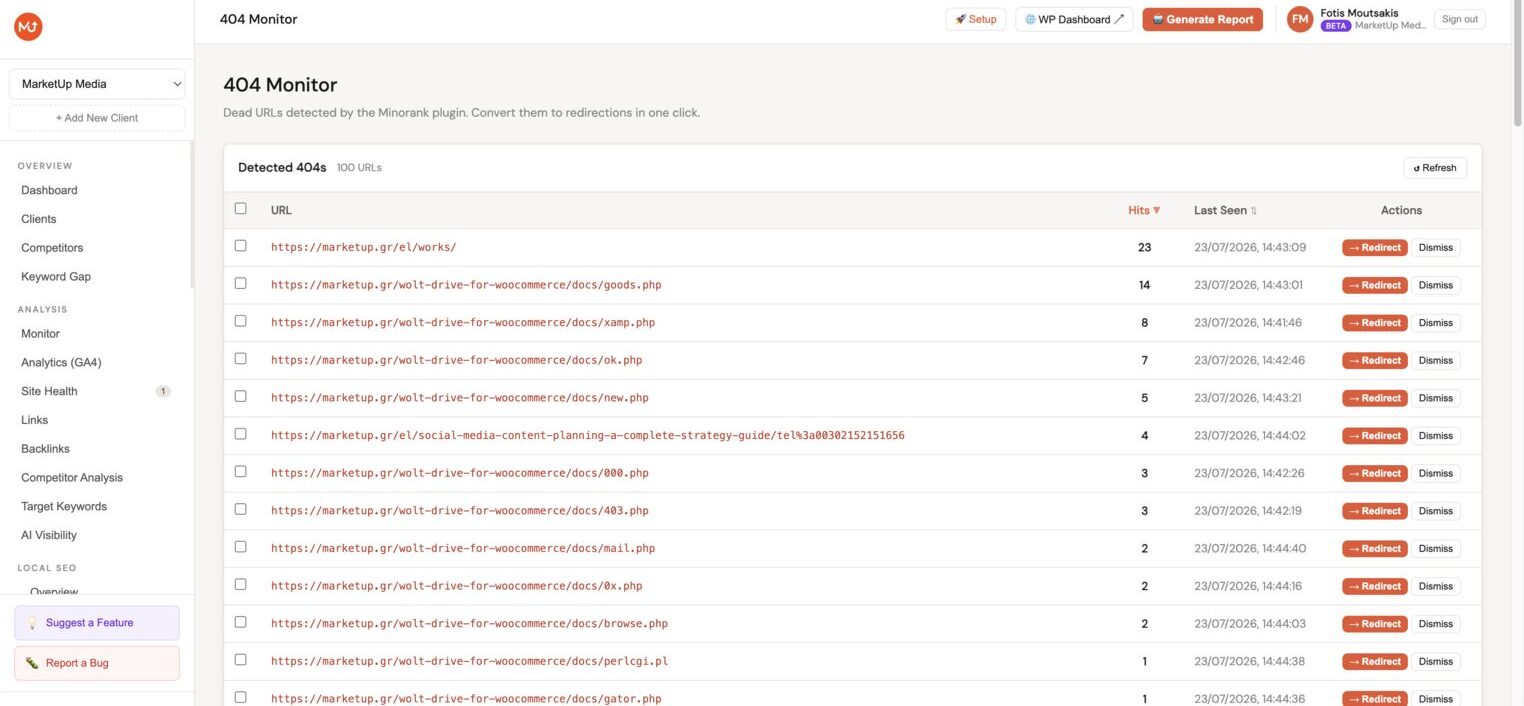
| Column | Description |
|---|---|
| URL | The broken path that returned 404 |
| Referrer | Where the request came from |
| Hits | How many times this URL returned 404 |
| Last seen | Most recent 404 hit timestamp |
Sort by Hits descending to prioritise the most-accessed broken URLs. Click → Create redirect on any row to open a pre-filled redirection modal.
SEO Settings
Some global plugin settings are accessible from the platform:
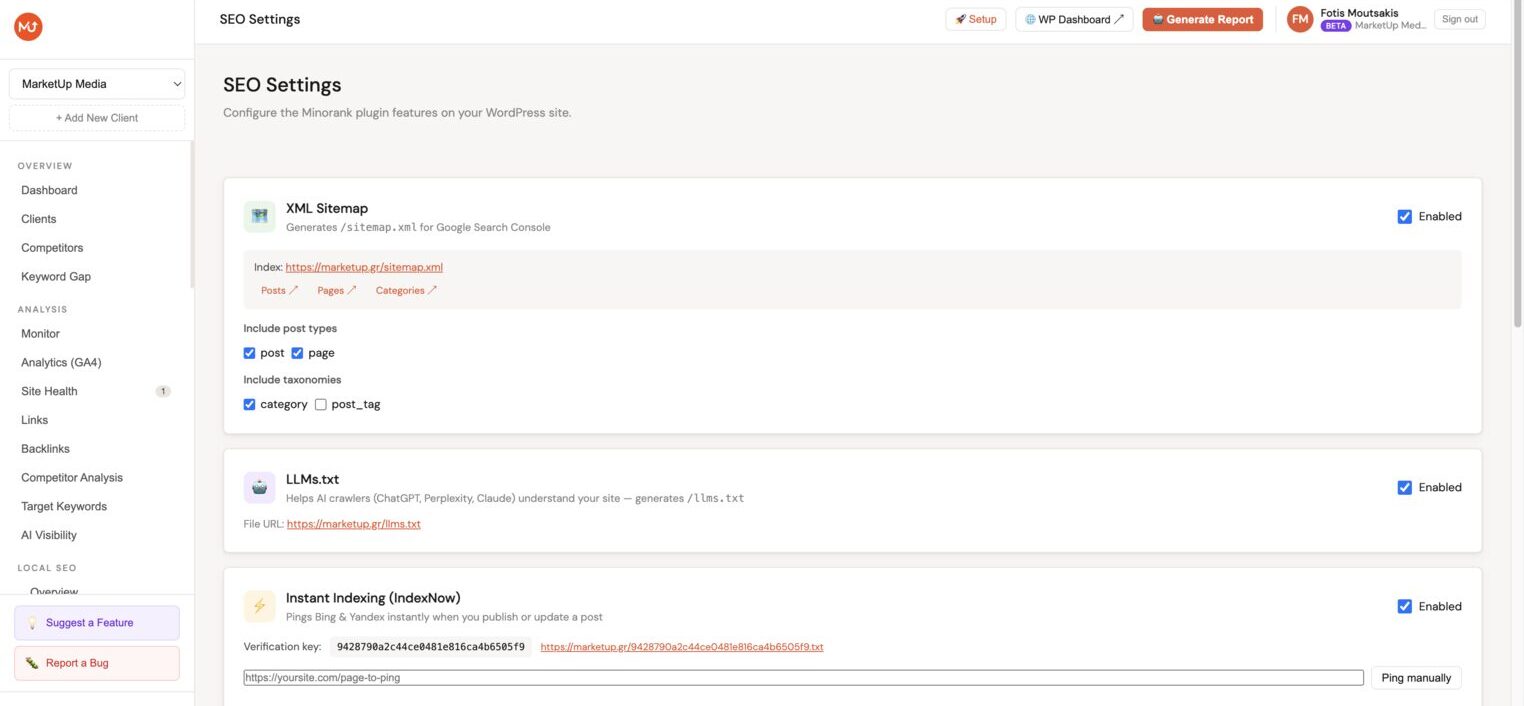
- IndexNow, trigger a manual URL ping directly from the platform
- Sitemap, view the current sitemap URL and trigger a regeneration
- API Key, view connection status and rotate the key if needed
Next steps
- AI Article Writer, generate and publish articles to connected WordPress sites
- Plugin: Installation, full plugin setup guide
- Plugin: REST API, API reference for the plugin endpoints