404 Monitor
The 404 Monitor automatically logs every 404 response on your WordPress site. It deduplicates by URL, if the same broken link is hit 100 times it appears as a single row with a hit count of 100, so you always see the most impactful broken URLs at the top.
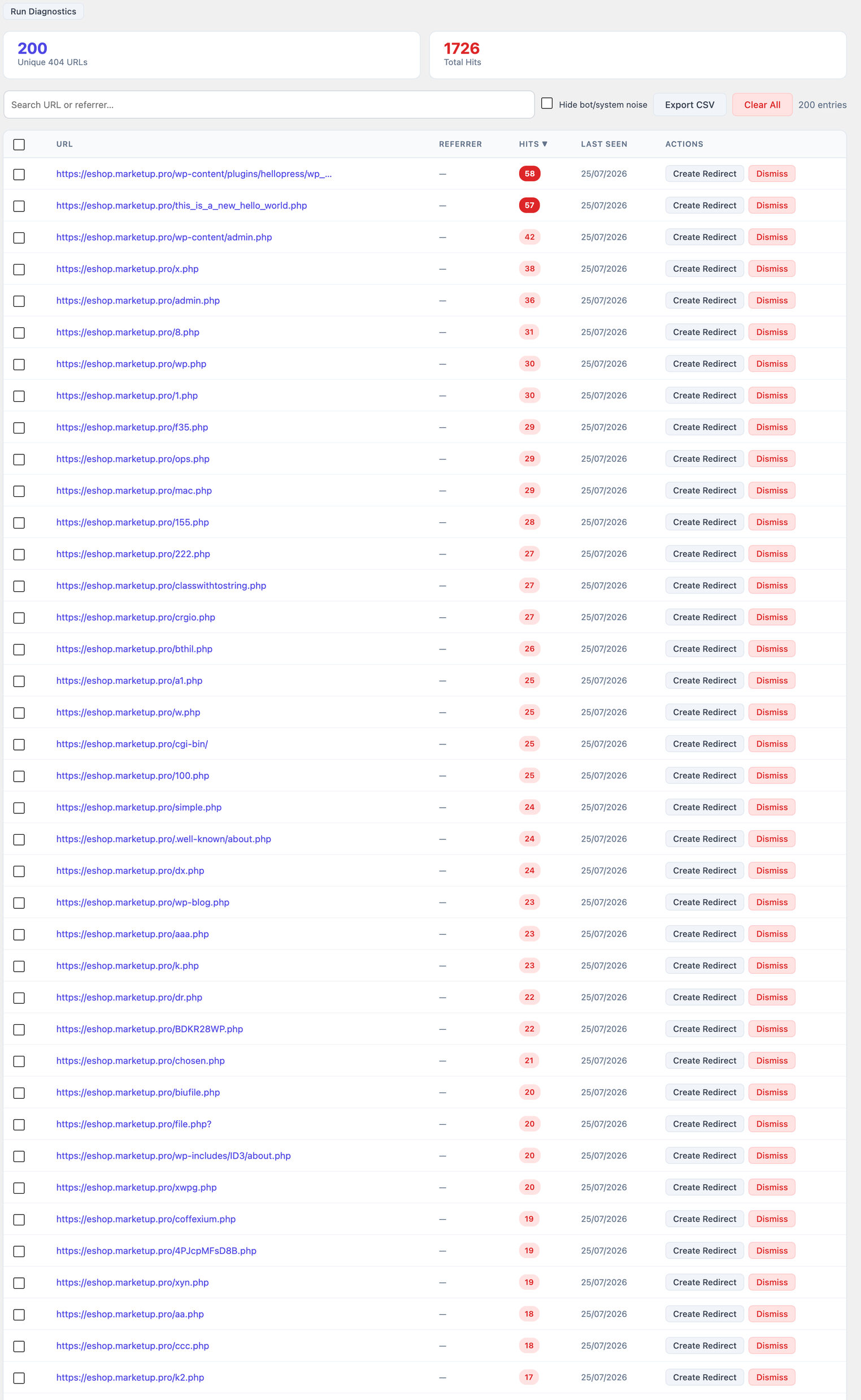
404 Monitor settings
Go to Minorank SEO → Settings → 404 Monitor to configure logging behaviour:
| Setting | Default | Description |
|---|---|---|
| Enable 404 logging | On | Master on/off switch. Turn off to stop recording new 404 entries without losing existing data. |
| Retention period | 90 days | How long entries are kept before automatic cleanup. Set to "Forever" to disable automatic deletion. |
A daily cleanup process removes entries older than the configured retention period automatically. Entries you have already dismissed are not affected by the retention setting.
:::tip When to use the master switch If you are running a large traffic migration and want to avoid filling the log with expected 404s during the transition, turn logging off temporarily and re-enable it once the migration is complete. :::
How 404 logging works
The monitor hooks into WordPress's template_redirect action. When WordPress determines a request results in a 404, the plugin logs:
- The requested URL (path only)
- The referrer (if present in the request headers)
- The timestamp
If the same URL is hit again later, the existing record is updated: the hit count increments and the last_seen timestamp is updated. No duplicate rows are created.
:::note Performance The monitor only writes to the database when a 404 actually occurs. Normal page loads are completely unaffected, there is no performance overhead on pages that return 200. :::
Stat cards
Two summary cards at the top of the page:
- Unique 404 URLs, number of distinct broken paths logged
- Total Hits, cumulative 404 responses across all logged URLs
Both numbers update in real time as you dismiss entries.
Bot / scanner noise filter
Toggle Hide bot/system noise to automatically suppress entries that match known bot and security-scanner patterns, paths like /wp-login.php, /.env, /xmlrpc.php, random PHP probes, and other paths that are never legitimate user traffic. This keeps the list focused on real broken links without manual dismissal.
CSV export
Click Export CSV to download all current (non-dismissed) log entries as a CSV file. Useful for:
- Reporting broken links to clients
- Importing into a spreadsheet for bulk redirect planning
- Archiving a snapshot before clearing the log
Table columns
| Column | Description |
|---|---|
| URL | The broken path that returned 404 |
| Referrer | Where the visitor came from. Empty if the request was direct or the referrer was not sent. |
| Hits | How many times this URL has returned 404 |
| Last Seen | Date and time of the most recent 404 hit |
| Actions | Create Redirect or Dismiss |
Sort by Hits descending to prioritise the most-accessed broken URLs first, these are the ones most likely causing real user impact and link equity loss.
Creating a redirect from a 404
Click Create Redirect on any row to open a modal pre-filled with:
- Source URL, the broken path (pre-filled, editable)
- Target URL, the destination (you fill this in)
- Redirect Type, defaults to 301; change if needed
Click Save, the redirect is created in the Redirections manager and the 404 log entry is automatically dismissed.
This is the fastest way to convert broken URLs into proper redirects without switching screens.
Dismiss (without redirecting)
Click Dismiss to delete a log entry without creating a redirect. Use this to clean up:
- Bot traffic hitting random paths (e.g.
/wp-admin/setup-config.php) - WordPress probe requests that are expected and harmless
- Old URLs that should remain 404 (e.g. deleted content with no replacement)
Bulk dismiss
Select multiple rows using the checkboxes and click Dismiss Selected. Useful for clearing bulk bot traffic or old entries that are no longer relevant.
Clear All
Click Clear All to delete every log entry at once. This does not affect any redirections you have already created. Use when starting fresh or after a major site migration where all old 404 entries are no longer relevant.
Search
The search field filters the table in real time by URL or referrer. Useful for:
- Finding all 404s from a specific referrer domain
- Checking whether a specific URL is being logged
- Filtering out bot traffic patterns by searching for common probe paths
What 404s to fix vs ignore
Fix (create a redirect):
- Pages that were moved or renamed
- URLs linked from external sites (referrer is an external domain)
- URLs with significant hit counts (10+ hits)
- Old product or service pages that have a logical replacement
Dismiss (no redirect needed):
- Random bot probe paths (
/wp-login.php,/.env,/xmlrpc.php) - Paths that have never existed and have no external links
- Internal 404s where the link has already been fixed at source
Next steps
- Redirections, full redirections manager reference
- REST API, list and dismiss 404 entries via the API (
GET /404s,DELETE /404s/{id})